 UseAgent
Get your images ready to share.
Resize the sample image or upload your own. Then prepare a task for the rest of your images.
01 / Try the image studio
Your changes stay in this browser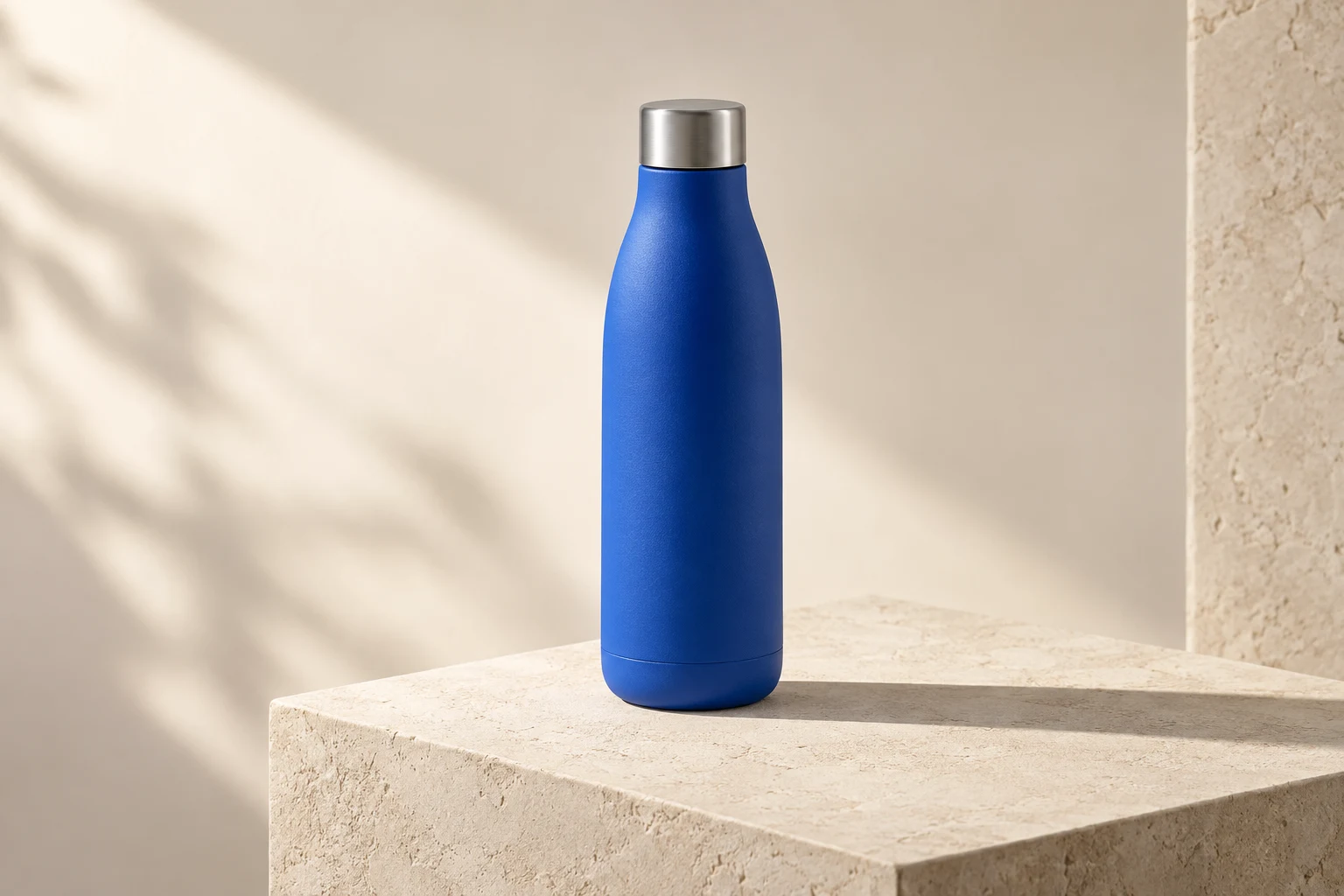
Sample campaign image ready.
02 / Add your details
Make this task your own.
Pick a task, fill in the details, then copy it into UseAgent.
Your task
Clean up product photos
- 1
Inspect and group assets
- 2
Clean and normalize images
- 3
Export a review sheet
A consistent catalog batch plus a sheet of flagged exceptions.
Your details
Name the files you will attach in UseAgent. Keep passwords and secret keys out of these fields.
Read the task before copying
Process the product images in The product photos I upload for Spring collection. Remove existing backgrounds where possible, place each item on Warm white, preserve product edges and color, and export using JPG images, 2000 pixels wide. Produce a review sheet and flag images that need a person to inspect.
Copying saves the task text. Open UseAgent and paste it to start.
Before you start
A few useful details.
Does every workflow generate new images?
No. Many tasks edit images you already have. Creating a brand-new image needs an image-generation service connected in UseAgent.
Can I review a batch before using it?
Yes. These tasks ask for a page showing all the images together so you can check them before using them.
What does Remix do today?
Change the example details and copy the task. Then open UseAgent, paste it and attach your images. Copying a whole workspace with its saved setup is coming later.